Tutorial
Add Automatic Previous and Next Buttons to Department Pages
Departments that contain multiple content pages can be made easier to navigate by automatically adding Previous and Next buttons to the pages within the department.
Instead of requiring visitors to return to the department's main page each time they want to continue to another page, the navigation buttons allow them to move directly from one content page to the next.
Add Previous and Next Navigation to a Department
MemberGate can automatically add Previous and Next navigation buttons to the content pages within a department by adding a single MemberGate tag to the department settings.
Step 1: Open the Department
Go to Content Departments.
Choose Add Department when creating a new department, or Edit Department to update an existing department.
Step 2: Open the Advanced Section
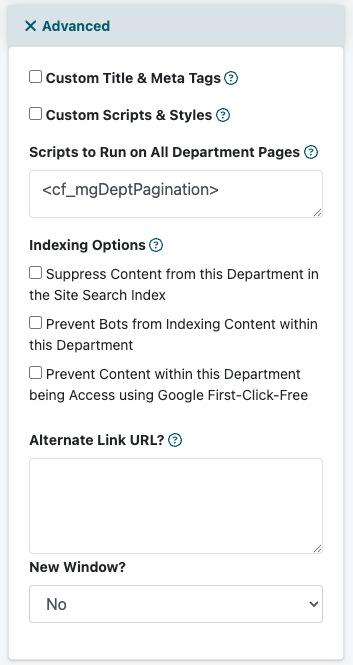
Within the Add/Edit Department screen, open the Advanced section.
Locate the field labeled Scripts to Run on All Department Pages.
Step 3: Add the Department Pagination Tag
Add the following MemberGate tag to the Scripts to Run on All Department Pages field:
<cf_mgdeptpagination>
Because this field runs on all of the content pages within the department, the tag only needs to be added once at the department level.
Step 4: Save the Department
Save the department after adding the tag.
MemberGate will automatically add the appropriate Previous and Next navigation to the content pages within that department.
Why Add Previous and Next Navigation?
Previous and Next buttons create a smoother browsing experience for departments that contain a series of lessons, articles, tutorials, chapters, or other related pages.
- Easier navigation: Visitors can move directly from one page to the next without returning to the department landing page.
- Better content flow: Related pages can be followed naturally in sequence.
- Fewer clicks: Members spend less time navigating menus and more time viewing the content.
- Automatic across the department: The navigation does not have to be manually added to every individual content page.
- Useful for courses and sequential content: Members can continue through lessons or sections with a simple click.
Adding pagination is a simple way to make multi-page departments easier to use while keeping navigation consistent throughout the section.