
Tutorial
Connect Your MemberGate Site to Klaviyo
Connect MemberGate with Klaviyo to automatically add new members, affiliates, and customers to your email marketing lists. This tutorial will walk you through configuring the integration and selecting which contacts should be sent to Klaviyo.
Connect to the Klaviyo API
Connecting to the Klaviyo API is only necessary one time . After the connection is successful, your Klaviyo lists will be available to select in member plans, shopping cart products or in the affiliate setup.
Copy the Private and Public API Key from Klaviyo and Paste it into MemberGate
Klaviyo
- Login to Klaviyo
- Click your account name in the lower left.
- Click Settings.
- Select the API keys tab.
- View your public API key - You can see the names of your private API keys but will not be able to view the key itself.
- Copy the Private and Public API Key
MemberGate
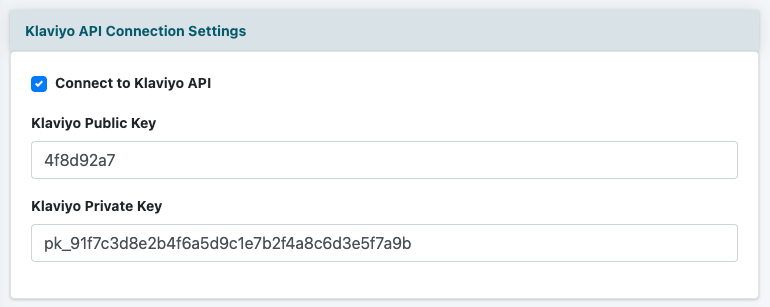
The Klaviyo API can be found on the right side of the control panel under Integrations Autoresponders Klaviyo
Paste in the Klaviyo Public Key and the Klaviyo Private Key and Save.
Connect Klaviyo to Member Plans
Automatically add new members to your Klaviyo lists upon subscribing to your site. The name and email address for each member will be automatically sent to Klaviyo after they have subscribed.
A unique Klaviyo list can be selected for every member plan.
Edit Member Plans
The Member Plans can be managed under Members Edit Member Plans
Choose an existing plan from the drop down menu or choose to add a new plan.
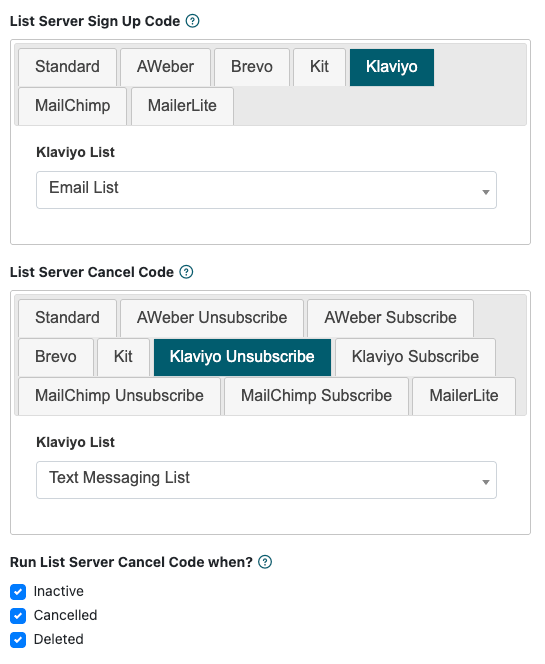
List Server Sign Up Code
Open the 'List Server Codes' section if necessary and select the Klaviyo tab.
When a new member subscribes, their name and email address can automatically be sent to your email marketing list.
Select the Klaviyo list from the drop down menu.
List Server Cancel Code
When a member cancels, they can automatically be removed from the marketing list and added to a different list or just added to a different list.
To Remove & Add to New List: Click the Klaviyo Unsubscribe tab and select the Klaviyo list to add them to from the drop down menu.
To Add to New List: Click the Klaviyo Subscribe tab and select the Klaviyo list to add them to from the drop down menu.
Run List Server Cancel Code when?
Choose at which point you would like the member to change according to the List Server Cancel Code. Should the cancel code run when the member goes 'inactive', 'cancels' or is 'deleted' from the system.
Connect Klaviyo to Shopping Cart Products
Automatically add customers to your Klaviyo list upon purchasing a product from the shopping cart. The name and email address for purchasers will be automatically sent to Klaviyo after they have purchased the specific product.
A unique Klaviyo list can be selected for every product.
Add/Edit Products
Klaviyo lists can be connected to each product under Commerce Shopping Cart Add/Edit Products
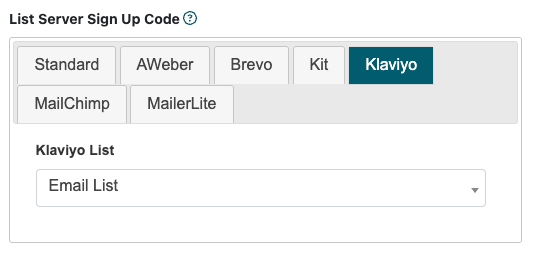
List Server Sign Up Code
Open the List Server Codes section if necessary and select the Klaviyo tab.
Add the List
Select the Klaviyo list from the drop down menu.
Connect Klaviyo to Your Affiliate Program
Upon signing up as an affiliate member, the affiliate's name and email address can automatically be added to a Klaviyo list
A unique Klaviyo list can be Set for Affiliate Members
Affiliate Program Settings
The Affiliate Program settings can be managed under Commerce Affiiate Program Settings
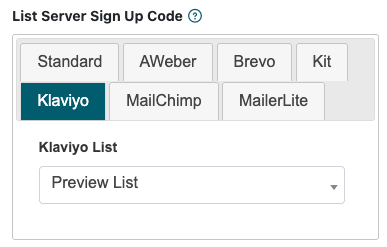
List Server Sign Up Code
Select the Klaviyo tab.
Add List
Select the Klaviyo list from the drop down menu.