
TUTORIAL: Setting Up Billing Bolt-On Notifications
Billing Bolt-On Notifications allow you to automatically send messages to members as a Bolt-On begins, processes additional billing, or reaches the end of its scheduled billing cycle.
You can create default notification messages that are available for your Billing Bolt-Ons, then customize the messages or notification settings for an individual Bolt-On when needed.
Default Notifications and Individual Bolt-On Notifications
The main Bolt-On Notifications page is used to configure the default notification messages for Billing Bolt-Ons.
An individual Bolt-On can use these defaults, or you can open that Bolt-On and customize its messages. You can also turn off a particular notification for an individual Bolt-On if you do not want that message sent.
Open the Default Bolt-On Notifications
Go to Billing Bolt-Ons and select the Notifications option in the upper-right corner.
New Installations: The notification message fields are blank when the feature is first installed. Enter the default subjects and messages that you would like MemberGate to use.
Configure the Notification Messages
There are three possible Billing Bolt-On notification messages. The messages that apply depend on the Bolt-On and its billing setup.
Bolt-On Commenced
This message is sent when the Bolt-On begins.
For a billed Bolt-On, it is sent with the first billing of the Bolt-On.
For a Free Bolt-On, which does not have a billing charge, the message is sent when the Bolt-On is added to the member's account.
Bolt-On Billed
This message is used for recurring Bolt-On billings after the first billing and before the final billing.
For example, a Bolt-On configured for five iterations sends the Commenced message on the first billing, the Billed message on the middle billings, and the Completed message on the final billing.
Bolt-On Completed
This message is sent with the final billing of a Bolt-On that has a set number of iterations.
The Completed message is sent in place of the regular Billed message for the final billing.
Infinite Iterations: A Bolt-On set to Infinite Iterations does not have a scheduled ending point, so the Bolt-On Completed notification is not available. Only the Bolt-On Commenced and Bolt-On Billed notifications are shown for that Bolt-On.
Enter the Subject and Message
Each available notification includes a Subject, a Message, and a Send Message option.
Enter the subject and message that should be sent for each billing event, then use Send Message to control whether that notification should be sent.
Recurring Billing Receipts: When a Bolt-On is billed as part of a membership renewal, the Bolt-On charge is already itemized on the Recurring Billing Receipt. If the Bolt-On Billed notification is also enabled, the member will receive an additional message about that charge.
Use Message Tags
Message Tags allow you to personalize the notification with information about the member, the Bolt-On, and the billing event.
Select the tag you would like to use from the Message Tags dropdown. The selected tag is automatically copied to your clipboard.
Place your cursor where you want the information to appear in the Subject or Message field, then paste the tag. When the notification is sent, MemberGate replaces the tag with the appropriate information.
The Message Tags dropdown also includes standard MemberGate tags that can be used for member information, payment details, invoice information, dates, and Member Plan information.
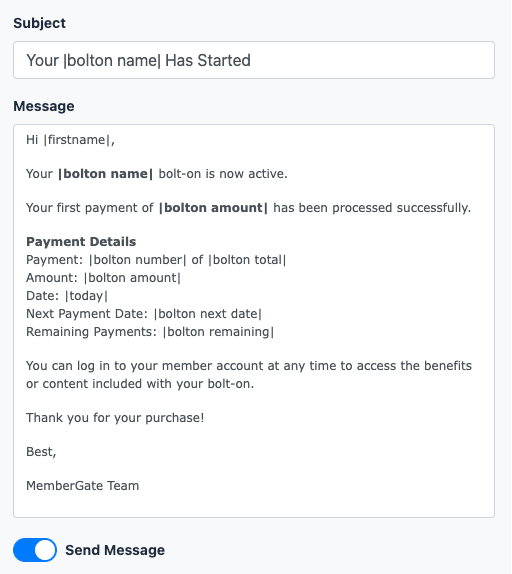
Example: A commenced message might include the member's first name, Bolt-On name, amount, payment number, and next billing date so each member receives information specific to their purchase.
Choose Who Gets a Copy
The Who Gets a Copy section allows you to send copies of Bolt-On notifications to additional email addresses.
You can use either copy option or both.
When the default notification settings are complete, click Save Notification Settings.
Customize Notifications for an Individual Bolt-On
The messages configured on the main Notifications page provide the default notification settings for Billing Bolt-Ons.
If a particular Bolt-On needs different messaging, open that Bolt-On and use the Messages section to customize its notification settings.
The setup works the same way as the default notifications. You can customize the subject and message for the individual Bolt-On, or turn off Send Message if a particular notification should not be sent for that Bolt-On.
Finite Iterations: Bolt-Ons with a set number of iterations can include Bolt-On Commenced, Bolt-On Billed, and Bolt-On Completed notifications.
Infinite Iterations: Bolt-Ons configured with Infinite Iterations include Bolt-On Commenced and Bolt-On Billed notifications only.