
Tutorial
Assigning a Billing Bolt-on to a Member
A billing bolt-on can be assigned to a member by an admin through 'edit member details' or a member can select the new billing option on a subscription form.
Follow along with these instructions to assign the bolt-on to a member using 'edit member details'
How to Add A Bolt-on
The billing bolt-ons can assigned to a member under Members Edit Member Details
Billing Bolt-Ons Section
Click on the to open the section if necessary.
To Add a Bolt-on
If there are existing bolt-ons for this member plan, click on the under 'Action'.
If there are not any billing bolt-ons for this member plan, no option will be available to add a bolt-on.
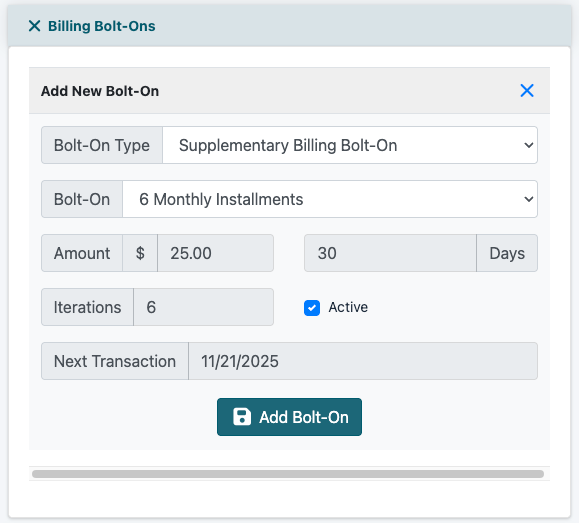
Bolt-On Type
Select the type of bolt-on from the drop down menu (supplementary, recurring, recurring discount or free)
Bolt-On
Select the desired bolt-on from the drop down menu. All of the settings for the bolt-on will show for the selected bolt-on in the fields below.
Save
Click on the button
How to Edit A Bolt-on
The billing bolt-ons can managed for members under Members Edit Member Details
Billing Bolt-Ons Section
Click on the to open the section if necessary.
To Edit a Bolt-on
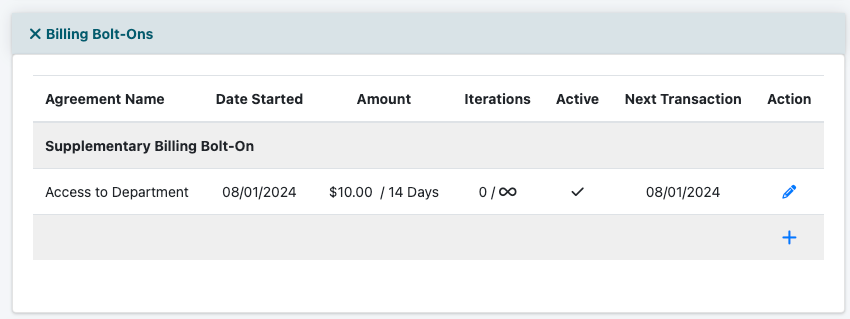
All current bolt-ons will appear in the 'Billing Bolt-On' section. Click on the to edit the bolt-on.
Any fields available in white can be edited. Any greyed boxes are static settings and cannot be changed.
Disable the Bolt-On
To stop the bolt-on from running, uncheck the 'Active' box.
Save
Click on the button.