
Tutorial
Gift Card Setup and Management
Gift Card Setup and Management
Learn how to create, sell, issue, accept, and manage gift cards in MemberGate.
Gift cards can be created for a fixed amount, a membership plan, a specific cart item, or a custom amount chosen by the buyer. This guide walks through the full gift card workflow, from creating templates to reviewing issued cards and transaction history.
Gift Card Workflow
- Create gift card templates
- Customize email messages
- Sell or issue gift cards
- Accept cards at checkout
- Manage balances and activity
How Gift Cards Work
Gift cards begin with a Gift Card Template. The template controls the gift card type, value or access, validity period, and active status.
Gift Card Templates are managed under Commerce Gift Cards. From this area, you can create new templates, edit existing templates, customize gift card emails, issue gift cards, and review gift card activity.
The Gift Card Template is the starting point
A Gift Card Template defines what kind of gift card can be issued or sold. Once a template has been created, individual gift cards can be generated from that template. Each issued gift card has its own code, recipient, balance or access value, expiration date, and transaction history.
Gift Card Types
There are four gift card types. Each type is designed for a different kind of purchase or access scenario.
Fixed Amount
Site owner sets the value.
Use this when you want to sell or issue a specific value, such as $25, $50, or $100.
Membership
Gift card gives member plan access.
Use this when the gift card should give access to a specific member plan for a set number of days.
Cart Item
Gift card redeems against one item.
Use this when the gift card should be tied to a specific shopping cart item or product.
Custom Amount
Buyer chooses the amount.
Use this when you want the purchaser to choose the gift card value within the range you set.
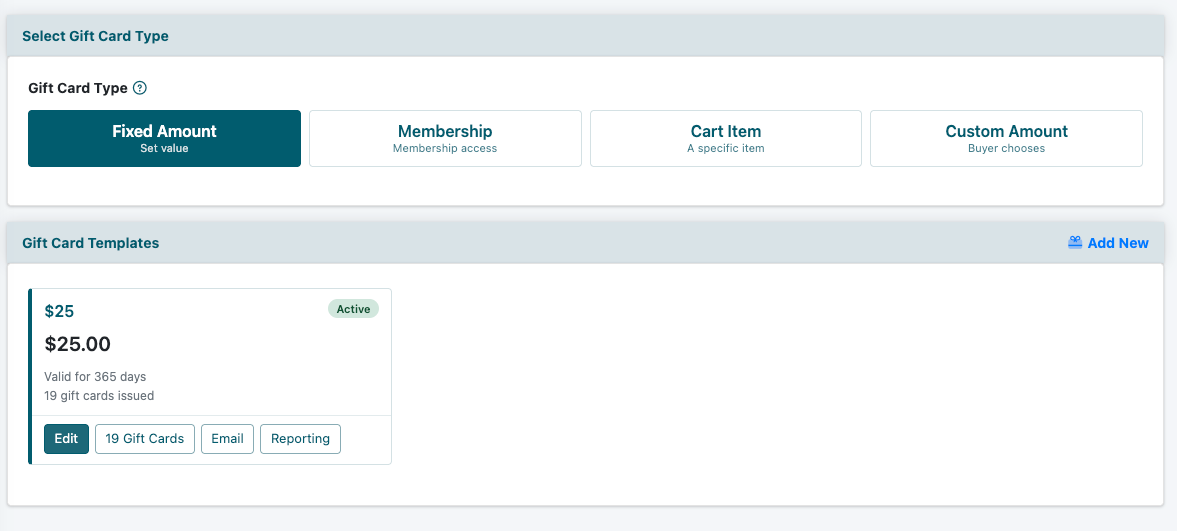
In this example, the Fixed Amount type is selected and a $25 gift card template is available to edit, email, report on, or review issued gift cards.
Select the Gift Card Type
At the top of the Gift Card Templates area, choose the type of gift card you want to create or manage. The selected type controls which templates display below.
After choosing a type, use the template cards to edit an existing template, view issued gift cards, customize the email, or review reporting.
Add and Manage Gift Card Templates
Each gift card type has its own template setup. Click Add New in the Gift Card Templates section, then complete the fields for the selected gift card type.
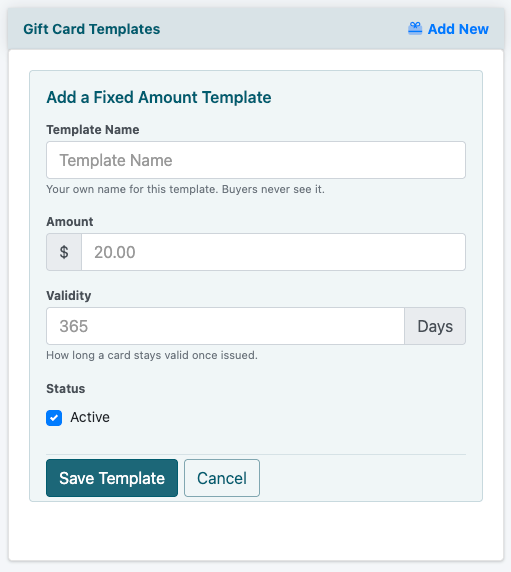
A Fixed Amount template includes the template name, amount, validity, and active status.
Fixed Amount Template
A Fixed Amount gift card is used when the site owner wants to create a gift card for a specific value.
Membership Template
A Membership gift card gives the recipient access to a selected member plan for a specific number of days.
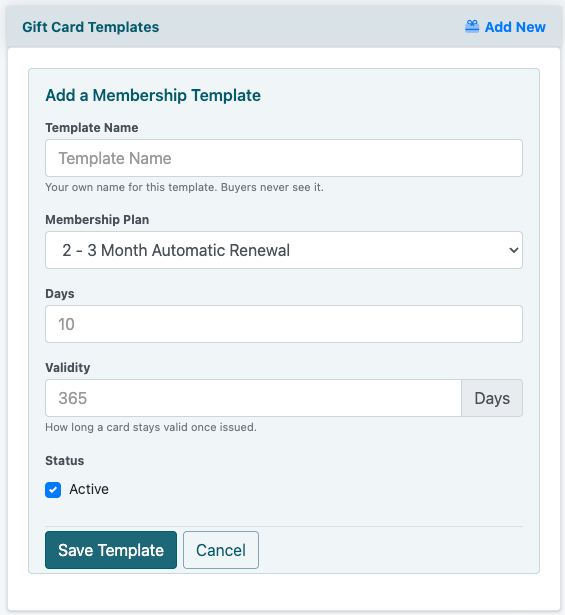
A Membership template connects the gift card to a member plan and a specific number of access days.
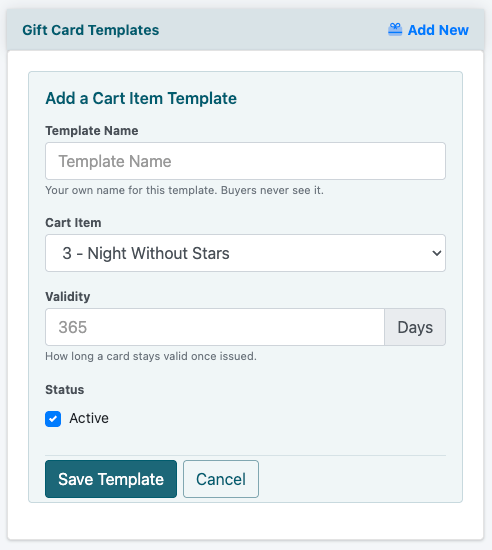
A Cart Item template connects the gift card to one specific shopping cart item.
Cart Item Template
A Cart Item gift card is used when the gift card should redeem against a specific shopping cart product.
Custom Amount Template
A Custom Amount gift card allows the buyer to choose the gift card value. The site owner sets the minimum and maximum amount.
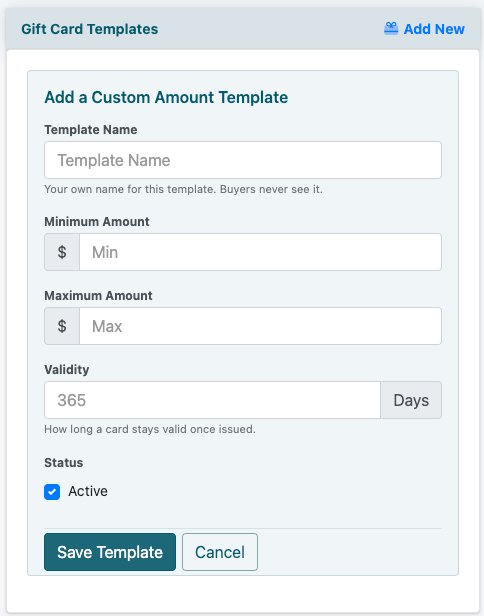
A Custom Amount template lets the purchaser choose the card value within the range you allow.
Tip: Use clear template names
Template names are for admin use, so choose names that make management easy. Examples include $25 Gift Card, 60 Day Membership Gift, Workbook Gift Card, or Custom Gift Card Amount.
Customize Gift Card Emails
Each gift card template can have its own email message. Use the Email button on the template card to review or customize the email that is sent to the gift card recipient.
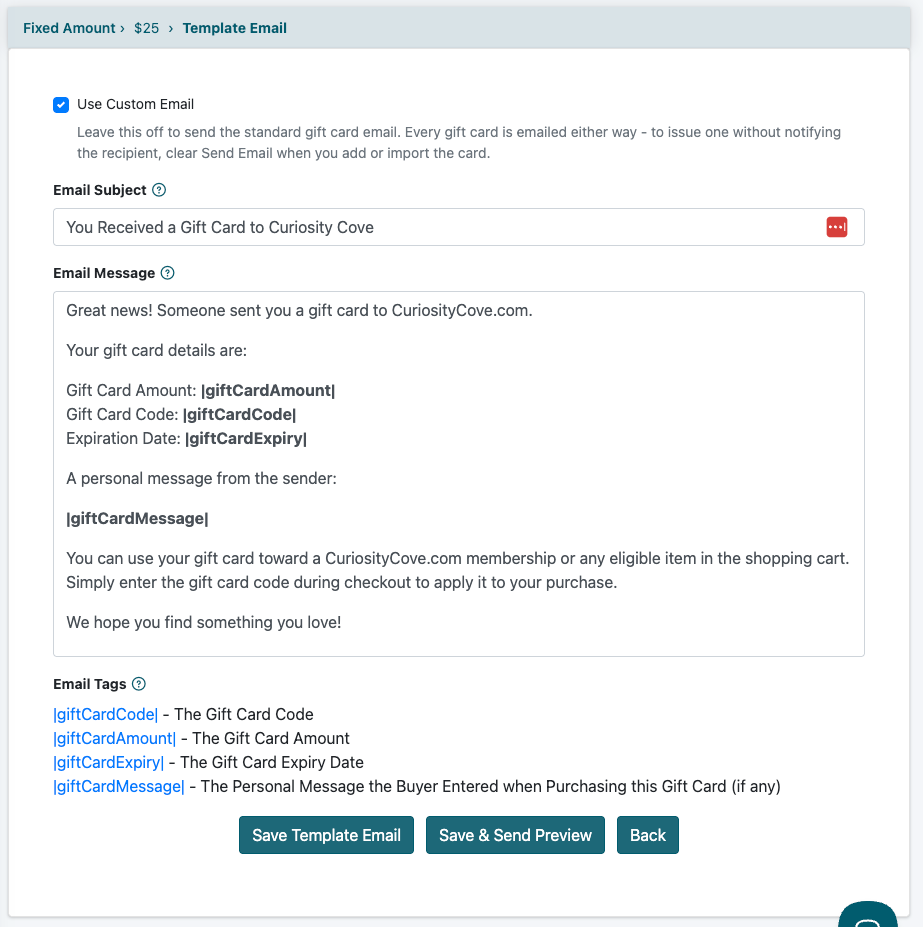
Use the template email screen to customize the subject, message, and gift card details sent to the recipient.
Template Email Settings
Use Custom Email
Check Use Custom Email if you want to replace the standard gift card email with your own subject and message.
Email Subject
Enter the subject line the recipient should see when the gift card email is sent.
Email Message
Enter the message that should be sent to the gift card recipient. Include the appropriate email tags so the gift card code, amount, expiration date, or other details are automatically inserted.
Email Tags
Email tags allow gift card details to be inserted automatically. Available tags may vary depending on the gift card type.
| Gift Card Type | Helpful Email Tags | What They Add |
|---|---|---|
| Fixed Amount | |giftCardCode| |giftCardAmount| |giftCardExpiry| |giftCardMessage| |
Gift card code, amount, expiration date, and the buyer's optional message. |
| Membership | |giftCardCode| |giftCardDays| |giftCardPlan| |giftCardSignupLink| |giftCardExpiry| |giftCardMessage| |
Gift card code, subscription days, membership plan, signup link, expiration date, and the buyer's optional message. |
| Cart Item | |giftCardCode| |giftCardItem| |giftCardItemLink| |giftCardExpiry| |giftCardMessage| |
Gift card code, item name, item link, expiration date, and the buyer's optional message. |
| Custom Amount | |giftCardCode| |giftCardAmount| |giftCardExpiry| |giftCardMessage| |
Gift card code, selected amount, expiration date, and the buyer's optional message. |
Sample Fixed Amount Email Message
Great news! Someone sent you a gift card.
Your gift card details are:
Gift Card Amount: |giftCardAmount|
Gift Card Code: |giftCardCode|
Expiration Date: |giftCardExpiry|
A personal message from the sender:
|giftCardMessage|
You can use your gift card toward an eligible membership or shopping cart purchase. Enter the gift card code during checkout to apply it to your order.
Sell Gift Cards Through the Shopping Cart
After a gift card template has been created, it can be sold through the shopping cart by linking it to a shopping cart product.
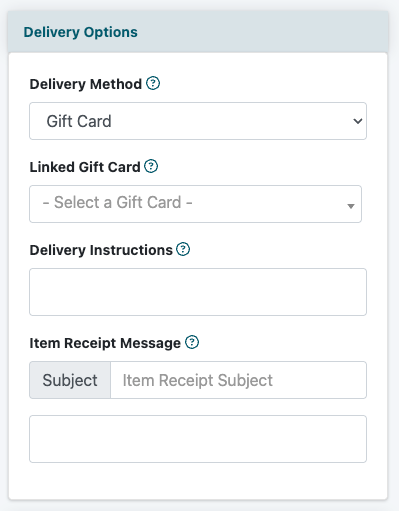
Select Gift Card as the delivery method, then choose the gift card template to connect to this shopping cart product.
Link a Gift Card to a Shopping Cart Product
Step 1: Open the Product Settings
Go to Commerce Shopping Cart Add/Edit Products. Open an existing product or create a new product for the gift card you want to sell.
Step 2: Select Gift Card as the Delivery Method
In the Delivery Method dropdown, select Gift Card.
Step 3: Choose the Linked Gift Card
After Gift Card is selected as the delivery method, the Linked Gift Card field will appear. Use this dropdown to select the gift card template that should be sold through this shopping cart product.
Step 4: Add Delivery Instructions if Needed
Use the Delivery Instructions field if you want to include additional information about how the gift card will be delivered or redeemed.
Step 5: Add an Item Receipt Message if Needed
Use the Item Receipt Message fields if you want to include a custom message on the purchaser's receipt for this shopping cart item.
How the Shopping Cart Connection Works
The shopping cart product is what the customer purchases. The linked gift card controls what is issued after purchase, such as a fixed amount gift card, membership gift card, cart item gift card, or custom amount gift card.
Assign Gift Cards as an Admin
Gift cards can also be issued by an admin through the control panel. This is useful when you want to provide a complimentary gift card, correct an account issue, reward a member, or manually send access to a specific recipient.
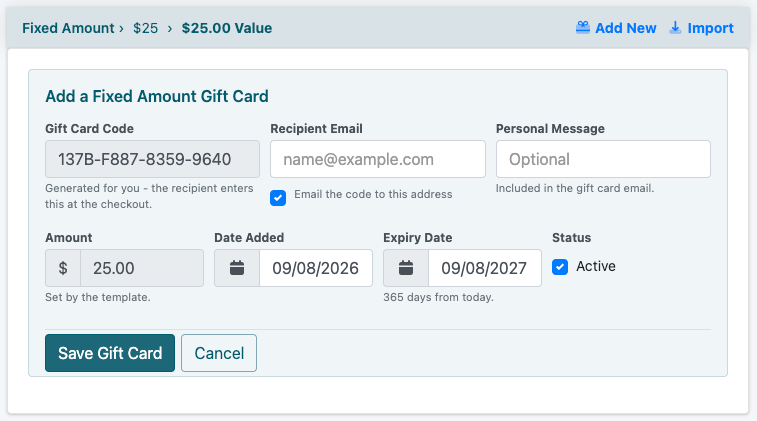
The issued gift card table lists individual gift cards created from a template.
Admin Issue Workflow
- Select the Gift Card Type for the gift card template you want to use.
- Click the x Gift Cards button for that template.
- Use Add New to create a single gift card, or Import to add gift cards in bulk if available.
- Enter the recipient details, gift card message, and any required card information.
- Choose whether the email should be sent to the recipient when the card is issued.
- Save or issue the gift card.
Admin-issued cards are helpful for support
Admin-issued gift cards can be used for customer service credits, loyalty rewards, event giveaways, replacement codes, special access, or promotional campaigns.
Accept Gift Cards on Subscription Forms and Shopping Cart
After gift cards are created, your forms must allow gift cards before users can redeem them during checkout.
Subscription Form Gift Card Settings
The subscription form generator can be found under Tools Subscription Form Generator.
When setting up the subscription form, review the Payment Options area for gift card settings.
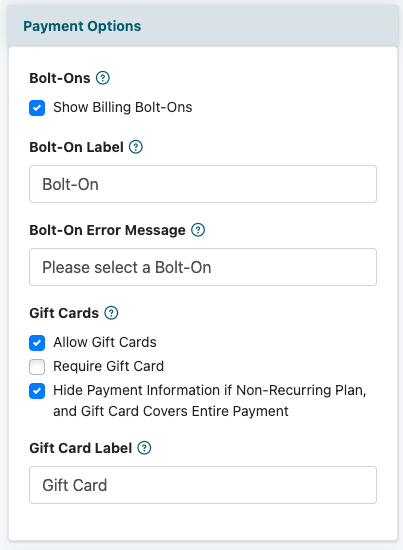
Gift cards must be enabled in the form settings before users can redeem them on the subscription form.
Shopping Cart Checkout
Gift cards should also be enabled anywhere users complete shopping cart purchases. This allows a recipient to enter a gift card code when buying an eligible product or using a fixed amount or custom amount card.
Membership Gift Cards
Membership gift cards are different from dollar-value cards. They are used to provide access to a specific member plan for a set number of days, so the redemption path should guide the recipient toward the correct signup or redemption process.
Manage Gift Cards and Transactions
The Gift Card Templates area gives you several tools for managing gift cards after they have been created.
Select the Gift Card Type for the gift card template you want to use.
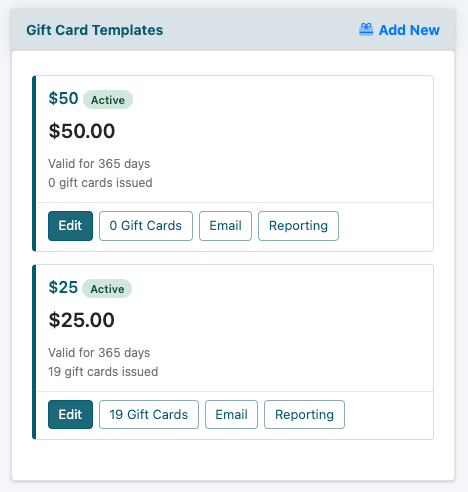
Template cards show the name, value or access, validity period, issued card count, and management buttons.
Template Management Buttons
Issued Gift Card Table
The issued gift card table allows you to review individual gift cards. Use the search fields and sortable columns to find a specific card, recipient, message, balance, date, or status.
Select the Gift Card Type for the gift card template you want to use.
Click the x Gift Cards button for that template.
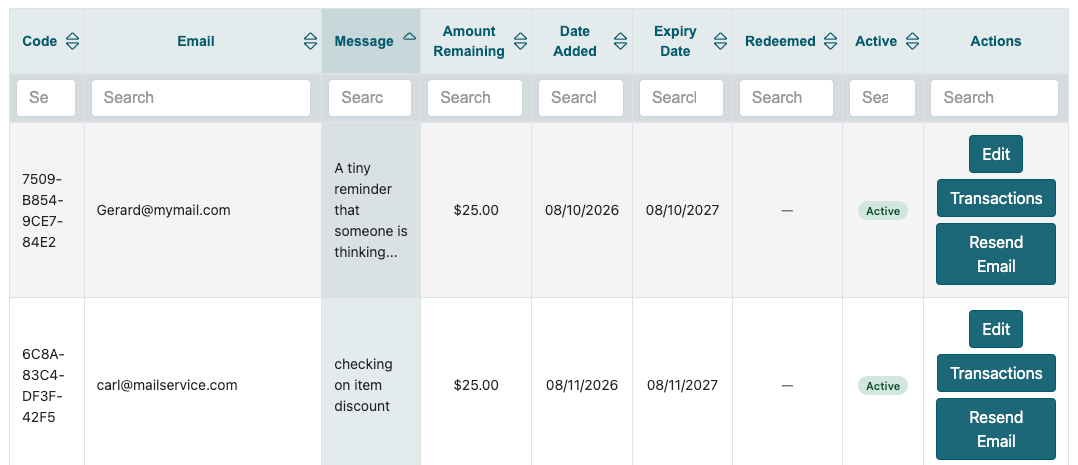
The issued gift card table provides a searchable view of individual cards and their current status.
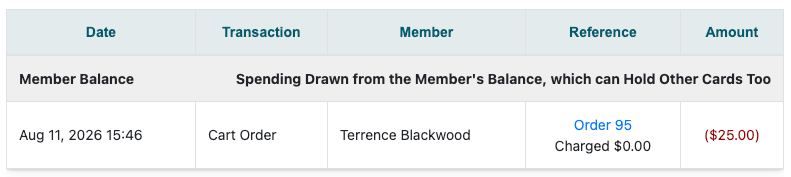
The transaction screen shows how the card value was moved or used.
Gift Card Transactions
Use the transaction history to review activity for a specific gift card. This can show when value was added to a member balance, when a membership payment was made, and how much value remains.
Member Balance Note
When a gift card value is moved to the member's balance, later spending from that balance may not be linked back to one individual card. Use the Gift Cards section of the member record to review the full balance history.
Quick Reference
Use these scenarios to decide which gift card setup fits what you are trying to do.
I want to sell a $25 gift card
Create a Fixed Amount template and set the amount to $25.00.
I want to gift 60 days of membership
Create a Membership template, choose the member plan, and set the number of days to 60.
I want a card for one product
Create a Cart Item template and select the shopping cart item the card should redeem against.
I want buyers to choose the amount
Create a Custom Amount template and set the minimum and maximum purchase amount.
I want to send a card manually
Open the template, click Gift Cards, then use Add New to issue the card as an admin.
I want users to redeem cards
Enable gift cards on the appropriate subscription form or shopping cart checkout form.
Before Going Live
- Confirm each gift card template has a clear internal name.
- Confirm the correct gift card type is selected.
- Review amount, member plan, cart item, or custom amount range.
- Set the correct validity period.
- Make sure the template is active.
- Customize the gift card email if needed.
- Send a preview or test email if available.
- Enable gift cards on the subscription form if they should be accepted there.
- Enable gift cards on the shopping cart checkout if they should be accepted there.
- Test the full purchase and redemption process before promoting gift cards to customers.