
Tutorial
TUTORIAL: Flipazine Flipbooks Integration
The Flipazine integration allows you to turn PDF documents into interactive flipbooks that can be displayed directly on MemberGate content and department pages.
After connecting your Flipazine account to MemberGate, you can upload a PDF, customize how the flipbook is displayed, choose the features available to viewers, and then use the generated MemberGate tag to place the flipbook anywhere on your site.
Sign Up for a Flipazine Account
Before creating Flipazine flipbooks in MemberGate, you will need a Flipazine account.
Visit Flipazine.com to create your account.
Connect Flipazine to MemberGate
Connecting your Flipazine account is a one-time setup.
The Flipazine integration can be found under Tools Flipazine Flipbooks.
Select Flipazine Settings.
Enable the Flipazine connection and enter the API Key from your Flipazine account.
Save the settings to connect your Flipazine account with your MemberGate site.
Create a New Flipazine Flipbook
Find It
Go to Tools Flipazine Flipbooks.
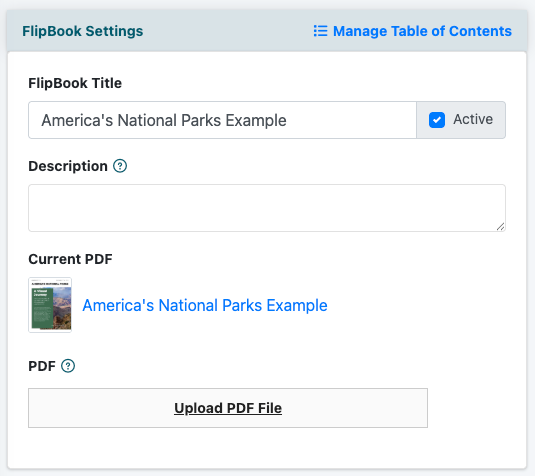
Choose to create a new flipbook and open the Add/Edit Flipazine Flipbook screen.
FlipBook Title
Enter a title for the flipbook. You can also add a description if you would like to include additional information about the document.
Click Upload PDF File and select the PDF from your computer.
After the PDF has been uploaded, it will appear as the current PDF for the flipbook.
Customize the Flipbook
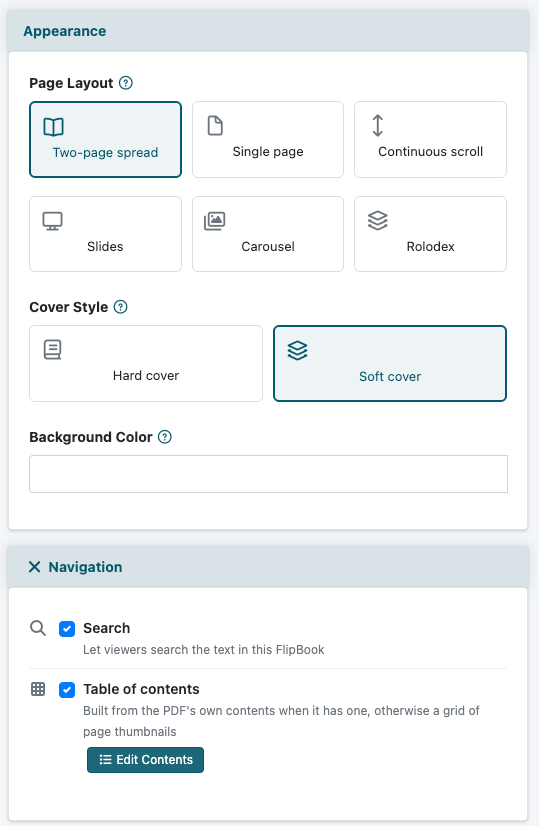
After uploading the PDF, use the available settings to control how the flipbook looks and how visitors can interact with it.
Appearance
Choose the page layout, cover style, and background color that best suit the document. Available page layouts include two-page spread, single page, continuous scroll, slides, carousel, and rolodex.
Navigation
Enable Search if viewers should be able to search the text within the PDF. You can also enable a Table of Contents to help readers move through the document more easily.
Sharing & Output
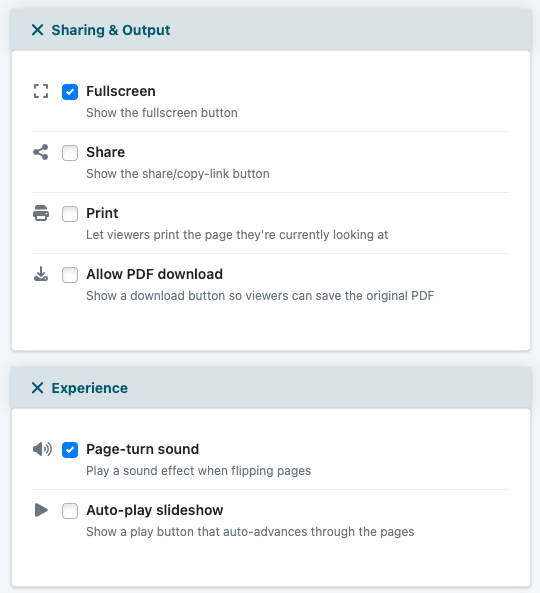
Choose whether viewers can use fullscreen mode, share the flipbook, print the page they are viewing, or download the original PDF.
Experience
Optional experience settings include a page-turn sound and an auto-play slideshow.
Save the Flipbook
After uploading the PDF and selecting the settings you would like to use, click the button to Save the flipbook.
MemberGate will create the Flipazine flipbook using the options you selected.
Add the Flipbook to Your Site
After the flipbook has been saved, MemberGate will provide an MG Tag for the flipbook.
Copy the MG Tag and paste it into the body of a content page or department page where you would like the flipbook to appear.
The Flipazine flipbook will display anywhere that MG Tag has been added, allowing members and visitors to interact with the PDF directly from your MemberGate site.