
Tutorial
How to Configure Lapsed Billing for a Member Plan
Lapsed Billing allows you to recover missed billing time when a recurring member renews after a payment failure or other interruption.
You can choose how many days of the billing gap MemberGate should recover, or allow the system to account for the entire lapsed period.
Members Edit Member Plans
Enable Lapsed Billing
Open the recurring Member Plan you would like to update and locate the Charge Lapsed Payment on Renewal setting.
Enable this option to have MemberGate account for eligible lapsed billing time when a member renews after a billing interruption.
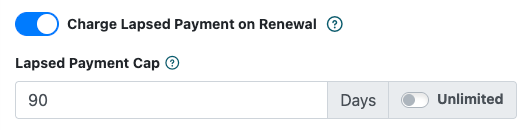
Enable Lapsed Billing, then enter a maximum number of days or select Unlimited.
Set the Lapsed Payment Cap
Once Lapsed Billing is enabled, use the Lapsed Payment Cap setting to control how much of the missed billing period can be recovered.
Enter the maximum number of days you want MemberGate to account for.
Allow Unlimited Lapsed Billing
If you want MemberGate to account for the entire billing gap, enable Unlimited instead of setting a maximum number of days.
This can be useful for SaaS products and other continuous-service memberships where billing is expected to remain uninterrupted regardless of how long it takes the member to renew.
Save the Member Plan
Save the Member Plan after configuring the Lapsed Billing settings.
The selected rules will then be used when eligible members on that recurring plan renew after a billing lapse.