
Tutorial
TUTORIAL: Setting Up Content Actions
Content Actions allow you to add short time or activity details to content pages, such as 10 minute read, 5 minute watch, or 15 minute listen. These details help visitors quickly understand what type of content they are viewing and how much time they may want to set aside for it.
There are two main steps to using Content Action
Once a Content Action is assigned to a page, it will appear on the published teaser copy and at the top right of the content page itself. This gives visitors helpful context before they open the page and reinforces the content action and timing once they are viewing it.
- Create the Content Action
- Assign the Content Action to content pages
Find it - Content Action Types
Content Action Types can be managed under Content Pages Content Action Types
Create a New Action Type
Select 'Add New Content Action Type' from the drop down menu and click the button
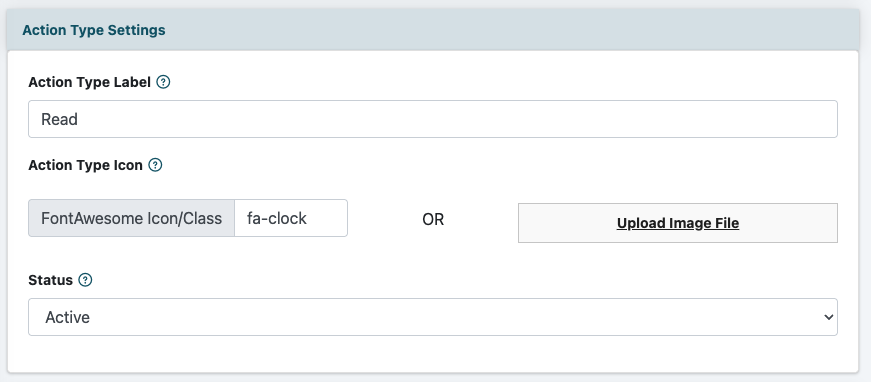
Add an Action Type Label
Enter the label for the Action Type you would like to create. This label should clearly describe the type of action being performed.
Examples might include:
- Watch
- Listen
- Read
The Action Type label identifies the action shown with the time estimate, such as read, watch, or listen.
Add an Icon
An icon can be included with the Action Type label to help visually identify the action item.
You can either enter a Font Awesome icon class or upload your own image. This allows you to use a standard icon, such as a video icon, document icon, download icon, or audio icon, or create a custom visual that matches your site.
Set the Action Type Status
Set the Action Type to Active when it is ready to be used on the site.
If the Action Type should not currently be available, set it to Inactive. This is helpful when you are preparing an Action Type for future use or when an Action Type is no longer needed.
Save
Click the button to add it to the available options. Once saved and active, it can be assigned to content pages.
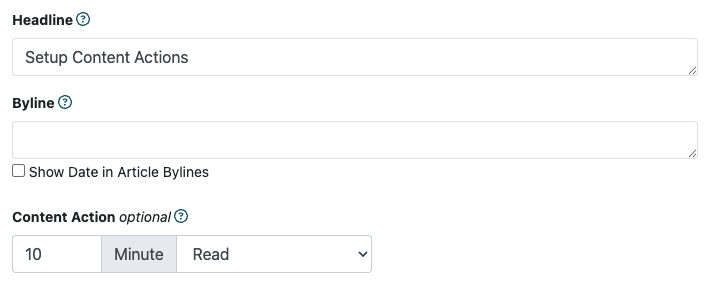
Assign a Content Action When Adding or Editing Content
Action Types can be assigned when adding a new content page or editing an existing one.
Open Add/Edit Content
Content Pages can be found under Content Pages Add Content
Select the Content Action
In the content page editor, locate the Main or first section.
Find the Content Action field. Enter a number of minutes that it will take the user to perform the action. Click the dropdown menu and select the appropriate Action Type for the page.
Why Content Actions Are Helpful
Content Actions make it easier for visitors to decide what content fits their time and interest. A visitor may have time for a quick 5 minute watch, while another may be looking for a longer 15 minute listen or a more detailed 10 minute read.
Because the Content Action appears on both the teaser copy and the content page, it helps set expectations before and after the visitor clicks. This can improve browsing, make content feel more organized, and help visitors choose the pages that best match what they want to do in that moment.