
Tutorial
TUTORIAL: Using Subscription Abandonment to Recover Signups
Subscription Abandonment helps follow up with visitors who start a membership subscription form but do not complete the signup process. The feature can automatically send a series of reminder emails, each with a link back to the form so the visitor can return and finish subscribing.
The subscription form abandonment process includes three follow-up email messages. These messages are sent automatically after a visitor starts filling out a subscription form but does not complete the signup process.
Each message is sent after a set amount of time, such as 30 minutes, 24 hours, or 5 days. The email can include a link back to the subscription form, allowing the visitor to return and finish subscribing.
These messages can be customized to match your site’s tone and can include available email variables, such as the visitor’s first name, last name, email address, abandonment link, and unsubscribe link.
Subscription Abandonment
Managing subscription abandonment can be found under Members Subscription Abandonment
Enable
Toggle the switch to green to Enable Subscription Abandonment. This will automatically open the settings screen to customize your settings.
Customizing Messages
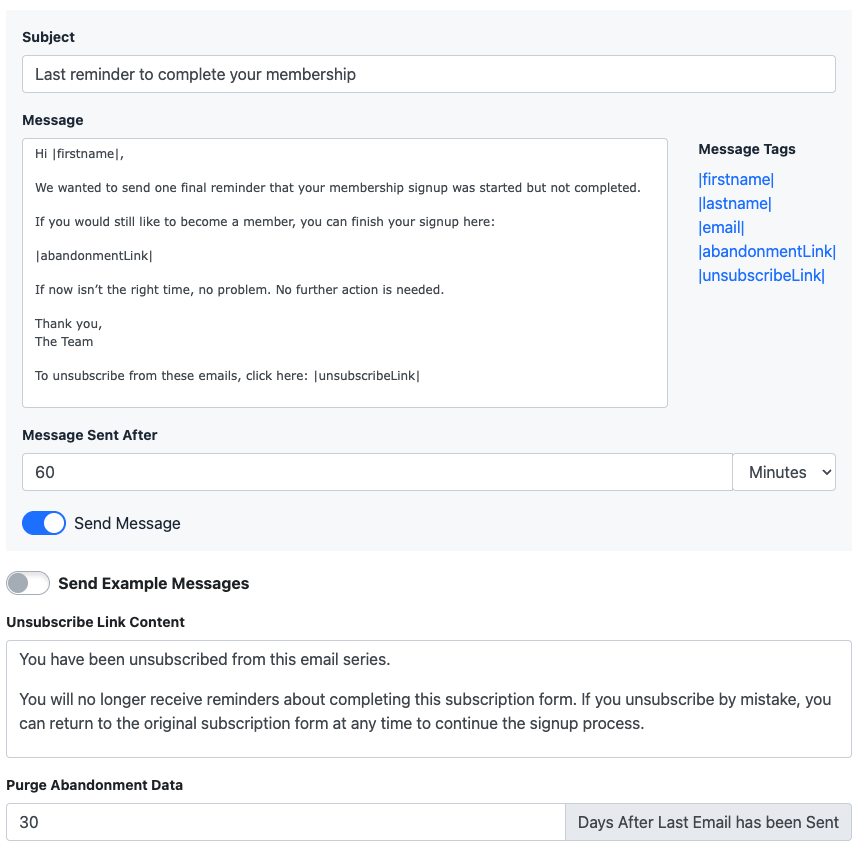
- Messages - Enter the subject line and message body for the abandonment email. Available variables can be added to the message by clicking the variable to copy it, then pasting it into the subject or body.
- Message Sent After - Set the timing for when the message should be sent by entering a number and selecting minutes, hours, or days from the dropdown menu.
- Send Message - Use the toggle to turn this email off if you do not want it to be sent.
Unsubscribe Link Content
Enter the message visitors will see after they click the unsubscribe link in an abandonment email. This text appears on the unsubscribe page and should confirm that they have been removed from the email series.
Purge Abandonment Data
Set the number of days after the last email message has been sent to automatically remove the would be subscriber from the session reports.
Save
Click the button
Active Sessions

Active Sessions
Active Sessions can be found under Members Abandonment
When you open the Subscription Abandonment feature, the Active Sessions report will appear. This report shows visitors who started a subscription form but have not completed the signup process.
Subscriber Information
Each row includes the visitor’s name, email address, the date the session was created, and the last time the visitor was active.
Notification Activity
The Notification 1, Notification 2, and Notification 3 columns show activity for each abandonment email in the series. Each notification includes icons that help you quickly see what has happened with that message.
- Email Sent - The envelope icon shows green when the abandonment email has been sent.
- Email Opened - The eye icon shows green when the visitor has opened the email.
- Link Clicked - The pointer icon shows green when the visitor has clicked the abandonment link in the email.
- Viewing Details - Hover over any icon to view the date and time for that action.
Opt Out
Admin members can manually opt out users from receiving subsequent email messages. Select the button for the specific user. They will not receive any other email message in the series.
Subscription Abandonment Reporting
The Reporting section allows you to view subscription abandonment activity for a selected date range.
Reporting
Subscription abandonment reports can be found under Members Abandonment
Click on the Reporting link
Report Date Specifications
Set the Report Start Month and End Month
Click on the button to show the results.
Report Results
After the report is generated, two reporting sections will appear: Subscription Abandonment Recoveries and Subscription Abandonment Email Performance
Each section includes a visual bar graph, a table of data, and a CSV button to download the report data.
Subscription Abandonment Recoveries
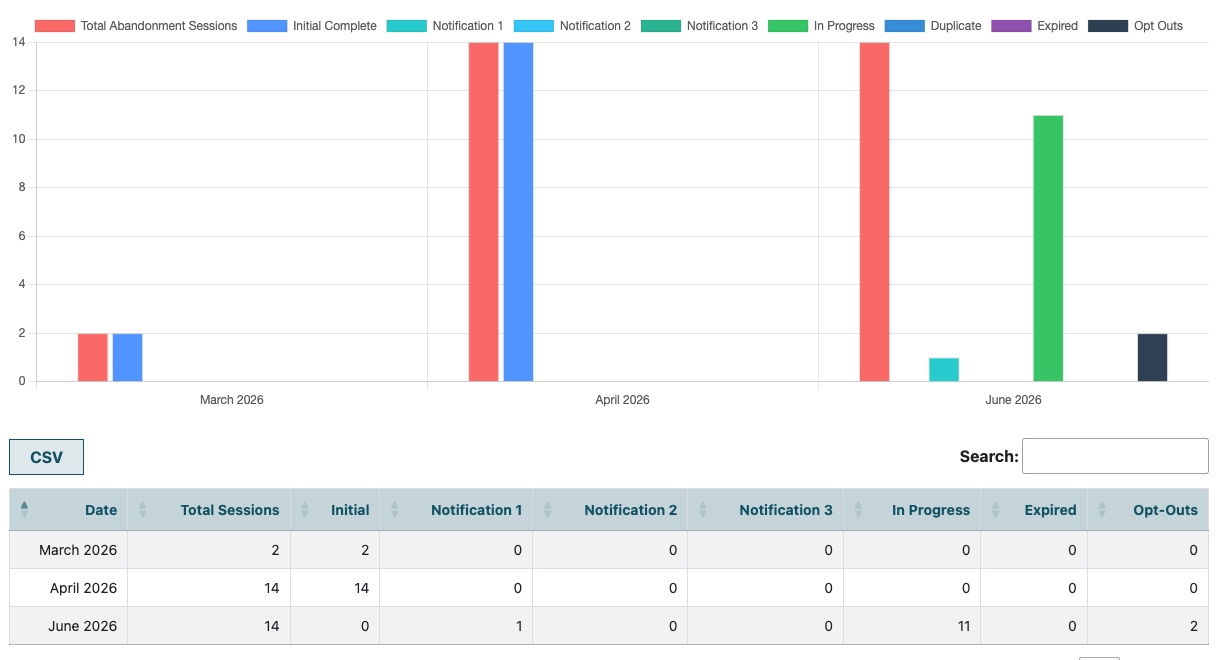
The Subscription Abandonment Recoveries report shows how many abandonment sessions were created during the selected date range and what happened with those sessions.
- Graph - The graph gives a visual summary by month. This makes it easy to compare total abandonment sessions with completed signups, notifications, sessions still in progress, expired sessions, and opt-outs.
- Recoveries Table - This table can help you see when visitors returned to complete their subscription signup, whether they completed it before a notification was sent, after receiving one of the notification emails, or if the session remained incomplete.
- CSV Download - Click the button to download the report data for that section.
Subscription Abandonment Email Performance
The Subscription Abandonment Email Performance report shows how each abandonment email performed during the selected date range.
- Graph - The graph displays activity for Notification 1, Notification 2, and Notification 3. Each notification can include totals for emails sent, emails opened, and abandonment links clicked.
- Email Performance Table - The table below the graph provides the monthly email activity in more detail. Each notification is grouped with columns for Sent, Opened, and Clicked. Open and click activity may also include a percentage, making it easier to compare how each email in the series is performing.
- CSV Download - Click the button to download the report data for that section.