
Tutorial
Instead of only using files stored on your Membergate server, files from Amazon S3 can be added to your shopping cart and download area. If you have already connected your Amazon S3 account to your MemberGate site, skip down to #3.
Click on each section to expand for more information.
This is a one time action, but the first step is to connect your MemberGate site to your Amazon S3 account.
Amazon S3 settings can be setup and managed under API Service Settings Amazon S3
Amazon S3 API Settings
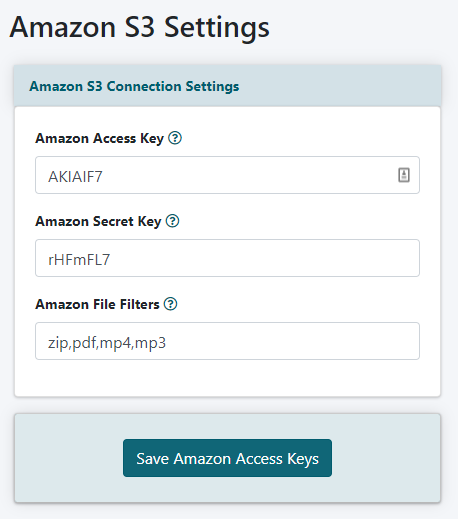
Login to your Amazon AWS Console to get your (1) Amazon Access Key and your (2) Amazon Secret Key. (3) Enter the file types that you would like to access from your Amazon S3 account to add as downloads (for example, mp4, mp3, pdf etc). Separate each different file type with a comma.
Click the button
Download as a Shopping Cart Product
A download file that is stored on your Amazon S3 account can be offered as a shopping cart product.
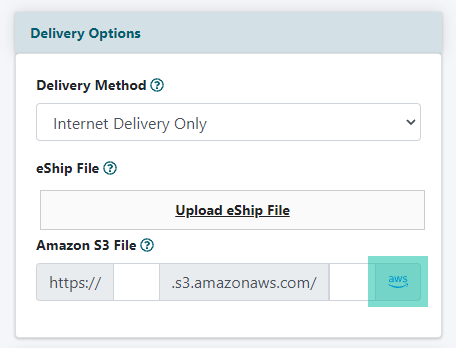
The download file can be setup under Commerce Shopping Cart Add/Edit Products
From your Amazon S3 Account - Enter the bucket and folder information if known, or click AWS to drill down through your files to select it. Please see the tutorial on using Amazon S3 for your downloads for further instruction
Download for Members
A download file that is stored on your Amazon S3 account can be offered as a download for members.
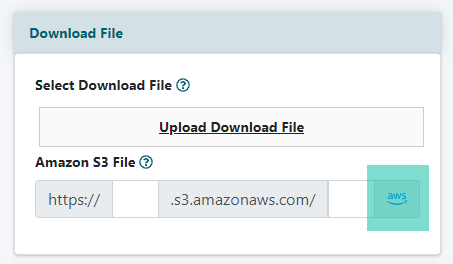
The download file can be setup under Downloads Add File
From your Amazon S3 Account - Enter the bucket and folder information if known, or click AWS to drill down through your files to select it. Please see the tutorial on using Amazon S3 for your downloads for further instruction