
Tutorial
How to Manage Form Submissions in MemberGate
Once a form begins collecting responses, MemberGate keeps those submissions organized in the Control Panel so you can review, manage, export, and follow up on the information you receive.
New submissions are easy to identify, and individual responses can be opened to see the complete form entry along with additional details about when and where it was submitted. If follow-up is needed, you can reply by email directly from the submission and keep the conversation connected to the original response.
Tools Form Generator
Open the Form Submissions
Open Tools > Form Generator to see the forms that have been created on your site.
Each form displays information such as the number of fields, the number of submissions received, the date of the most recent entry, and whether the form is currently active.
Under Actions, click the envelope icon for the form whose responses you would like to review.
Review and Organize Submissions
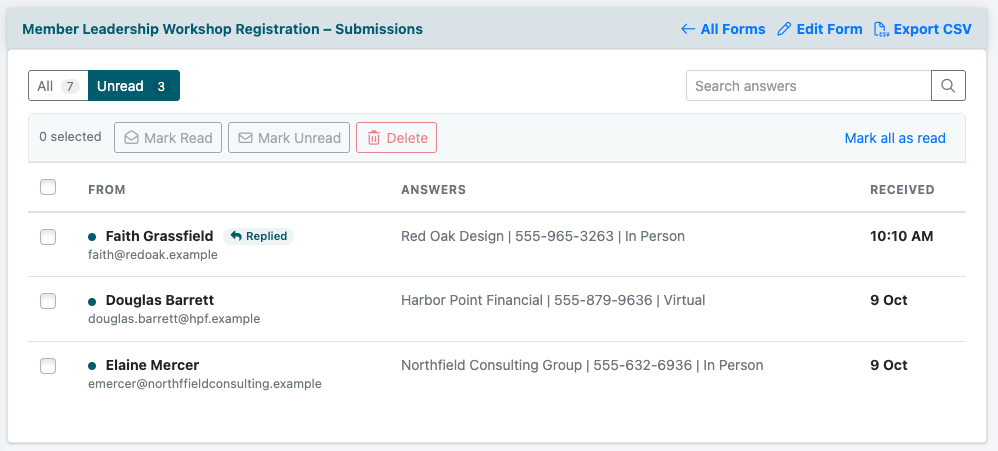
The submissions page gives you an overview of the responses received for the selected form.
New or unread submissions are highlighted so responses that may still need attention are easy to spot. Use the All and Unread tabs to move between the full submission list and responses that have not yet been marked as read.
Click a submission to open the complete response.
Review an Individual Submission
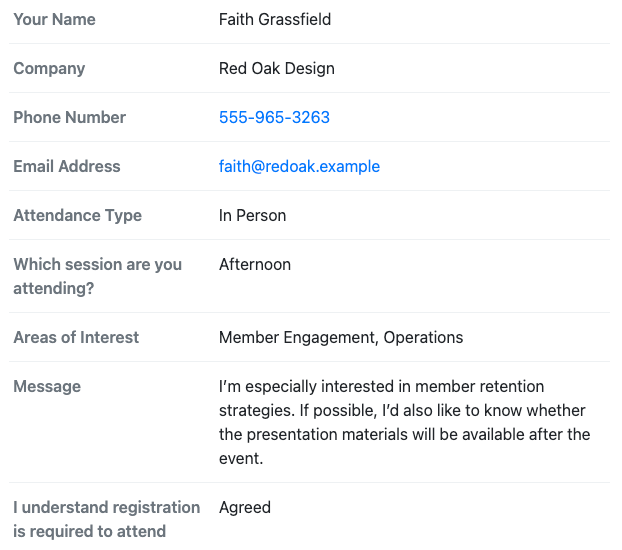
Click a submission to open the complete response. The individual submission page displays all of the answers provided on the form in one place, making it easy to review exactly what the person submitted.
The Details panel also provides additional information about the submission, including when it was received, whether the visitor was logged in as a member, the page the form was submitted from, the status of the notification email, and the IP address associated with the submission.
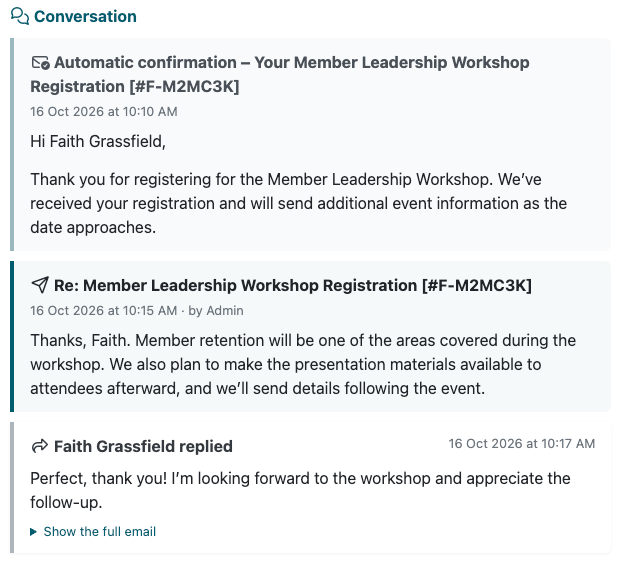
Below the submitted answers, the Conversation area keeps the communication connected to that response. This can include the automatic confirmation sent to the visitor, replies sent from MemberGate, and any email responses received back from the submitter.
Use the Older and Newer links to move between submissions without returning to the full list. You can also mark a response as unread if it still needs attention or delete it when it is no longer needed.
Reply to the Submitter
If the submission includes an email address, you can respond directly from the submission record.
Click Reply by Email to open the reply form beneath the conversation. The subject is automatically prepared for the response, and you can enter your message without leaving the MemberGate Control Panel.
You can also choose whether to include a copy of the person's original form submission with your reply.
Click Send Reply when the message is ready.
Export Form Responses
Form responses can also be downloaded when you need to work with the information outside of MemberGate.
From the main submissions page, click Export CSV. The CSV file downloads immediately and includes when each submission was received, the page it was submitted from, and the answers provided for each form field.
Use Your Submission Data Anywhere
The exported CSV can be opened in spreadsheet applications such as Excel or Google Sheets for additional sorting, reporting, review, or record keeping.