
Tutorial
TUTORIAL: Setting Up Content Page Types
Content Page Types allow you to organize content pages by format, such as articles, videos, downloads, audio, guides, tutorials, or any other type of content you would like to define. Once Content Page Types are created and assigned to content pages, visitors can use the Page Type filter on the search page to quickly find the type of content they are looking for.
There are two main steps to using Page Types
- Create the Content Page Type
- Assign the Page Type to content pages
Page Types can be assigned in bulk when you are first setting them up. After that, they can also be selected as part of the normal Add/Edit Content process when new content pages are added.
Find it - Content Page Types
Content Page Types can be managed under Content Pages Content Page Types
Create a New Page Type
Select 'Add New Content Page Type' from the drop down menu and click the button
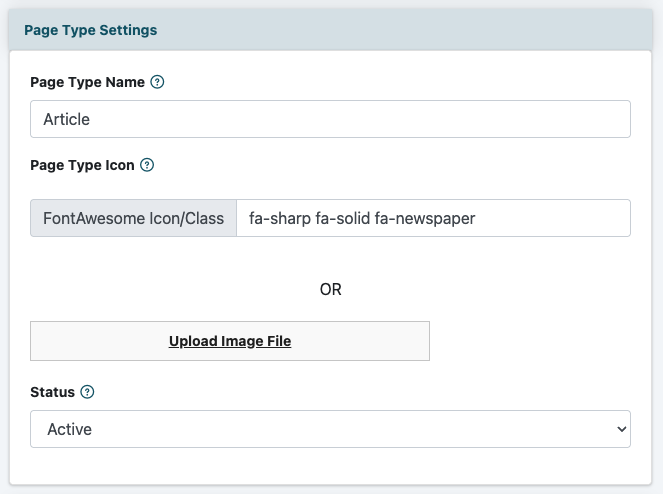
Add a Page Type Name
Enter the name of the Page Type you would like to create. This name should clearly describe the type of content being assigned to it.
Examples might include:
- Article
- Video
- Download
- Audio
- Tutorial
- Online Course
The Page Type name is what will be used to identify and organize content pages.
Add an Icon
An icon can be included with the Page Type name to help visually identify the content format.
You can either enter a Font Awesome icon class or upload your own image. This allows you to use a standard icon, such as a video icon, document icon, download icon, or audio icon, or create a custom visual that matches your site.
Set the Page Type Status
Set the Page Type to Active when it is ready to be used on the site.
If the Page Type should not currently be available, set it to Inactive. This is helpful when you are preparing a Page Type for future use or when a Page Type is no longer needed.
Save
Click the button to add it to the available options. Once saved and active, it can be assigned to content pages.
Assign Page Types in Bulk
Bulk assignment is useful when you are first setting up Content Page Types and need to update multiple existing content pages.
Find it - Bulk Assign
The bulk assign function for page types can be found under Content Pages Content Page Types
Open Bulk Assign
Click the Bulk Assign link in the top right of the Page Types area
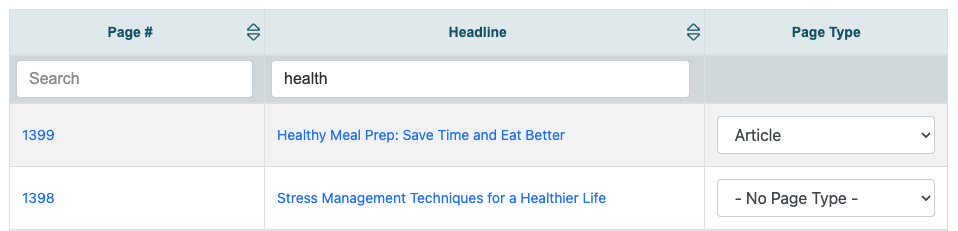
Review the Content Page List
All pages will be listed on the Bulk Assign screen. This allows you to review existing pages and assign the appropriate Page Type to each one.
Filter the Page List
If needed, enter a page number or part of a headline in the search boxes to begin filtering the list. This can make it easier to find a specific content page when working with a large number of pages.
Select the Page Type
For each page, click in the Page Type dropdown menu and choose the desired option.
For example, a page that contains a video could be assigned to Video, while a page that includes a downloadable file could be assigned to Download.
Assign a Page Type When Adding or Editing Content
Page Types can also be assigned when adding a new content page or editing an existing one.
Open Add/Edit Content
Content Pages can be found under Content Pages Add Content
Select the Content Page Type
In the content page editor, locate the Settings section.
Find the Content Page Type field. Click the dropdown menu and choose the appropriate Page Type for the page.
Using Page Types on the Search Page
After Content Page Types have been created and assigned, visitors can use the Page Type filter on the search page to narrow their results.
For example, if a visitor is only looking for downloadable resources, they can select Download from the Page Type filter. The search results will then show content pages assigned to that Page Type.
Why Page Types Are Helpful
Page Types make it easier for visitors to find content based on format. This is especially useful for sites with large content libraries or a mix of articles, videos, downloads, audio files, tutorials, and guides.
By assigning Page Types, you can create a more organized search experience and help visitors get to the content they want faster.