
Tutorial
TUTORIAL: Setting Up Content Topics
Content Topics provide a way to organize content pages by subject so visitors can filter search results more easily. After you create your topics and subtopics, you can assign them to the appropriate content pages and select a primary subtopic when needed.
The first step is to create the topics and subtopics that will be used to organize your content pages. Topics are the main categories, and subtopics are the child categories listed underneath them.
Find it - Content Topics
Content Topics can be managed under Content Pages Content Topics
Create a New Topic
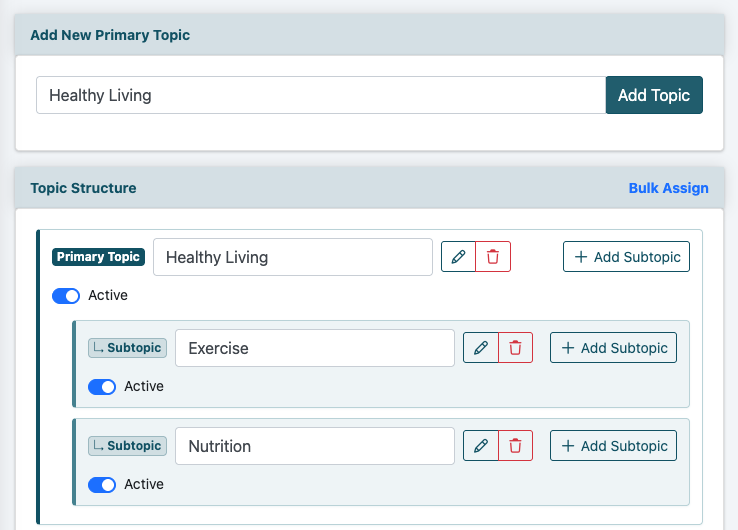
Enter the name of the main topic you would like to create and click the button. For example, a fitness site might create a main topic called Exercise.
Once added, the topic will appear in the topic tree.
Add a Subtopic
To add a child topic under the main topic, click + Add Subtopic. A new field will open underneath the selected topic.
Enter the Subtopic Name
Enter the name of the subtopic.
For example, under Exercise, you might add subtopics such as:
- Weight Training
- Cardio
- Yoga
- Stretching
Add Additional Subtopics
Continue adding subtopics until the topic structure is complete.
Subtopics can also have their own subtopics. This allows you to create a deeper topic tree when more detailed organization is needed.
Add Additional Main Topics
To create another main topic, repeat the same steps. Enter the new topic name, click Add Topic, and then add any needed subtopics below it.
Edit or Delete a Topic
Each topic and subtopic can be updated after it has been created.
Click the pencil icon next to a topic or subtopic name to make changes.
Click the trash icon next to a topic or subtopic name to delete it.
Assign Page Content Topics in Bulk
Bulk assignment is useful when you are first setting up Content Topics and need to update multiple existing content pages.
Find it - Bulk Assign
The bulk assign function for content topics can be found under Content Pages Content Topics
Open Bulk Assign
Click the Bulk Assign link in the top right of the Content Topics area
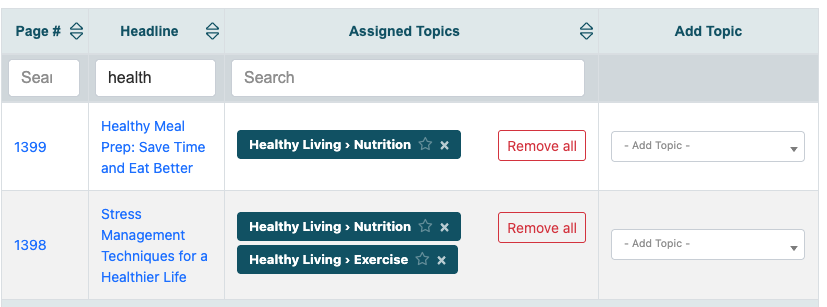
Review the Content Page List
All pages will be listed on the Bulk Assign screen. This allows you to review existing pages and assign the appropriate Content Topics to each one.
Filter the Page List
If needed, enter a page number or part of a headline in the search boxes to begin filtering the list. This can make it easier to find a specific content page when working with a large number of pages.
Select the Content Topic
For each page, click in the Add topic dropdown menu and choose the desired option.
Multiple subtopics can be selected for each content page. This is helpful when a page fits into more than one subject area.
Optional: Mark a Primary Subtopic
If more than one subtopic is assigned to a content page, click the star next to the subtopic you would like to mark as the primary subtopic. Only one subtopic can be starred at a time.
Assign a Content Topic When Adding or Editing Content
Content Topics can also be assigned when adding a new content page or editing an existing one.
Open Add/Edit Content
Content Pages can be found under Content Pages Add Content
Select the Content Topic
In the content page editor, locate the Tagging section.
Find the Topics field. Click the + subtopic option(s) to choose those subtopics for this page.
Optional: Mark a Primary Subtopic
If more than one subtopic is assigned to a content page, click the star next to the subtopic you would like to mark as the primary subtopic. Only one subtopic can be starred at a time.